
Message Hub PIN Security
Table of contents
- What is Message Hub PIN Security?
- When do I need a PIN?
- Grace Period Explained
- How to setup your PIN?
- How to change your PIN
- How to reset your PIN
- Trusted devices & PIN prompts
- Security alerts
- Lost phone scenario
- Troubleshooting
What is Message Hub PIN Security?
Message Hub PIN Security protects sensitive actions in Message Hub with a personal 4-digit PIN.
This extra layer of security ensures your account and contacts remain safe from abuse.
When do I need a PIN?
You’ll only be asked for your PIN when performing critical actions in Message Hub:
- Creating a new template
- Sending an SMS manually / resending an SMS message from an invitation
- Uploading a contact file
Simply opening Message Hub does not require a PIN.
Grace period explained
- You have 30 days from your first Message Hub action before a PIN becomes mandatory.
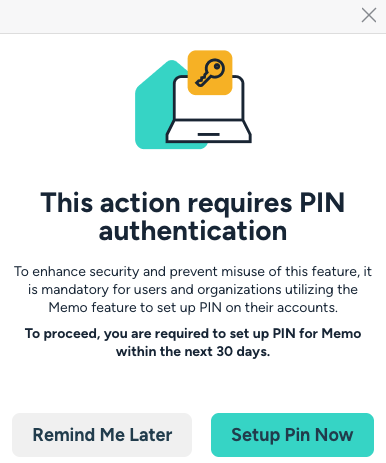
- During the grace period, you’ll see a reminder modal encouraging you to set up your PIN.
- After 30 days, the PIN setup is required before you can continue with sensitive actions.
How to set up your PIN
PIN creation is initiated when you try to submit a new template or a new invitation.
-
Verify your phone number
Enter your phone number and confirm it with a one-time code (OTP).
-
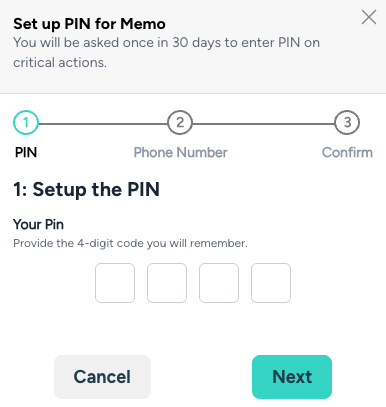
Create your PIN
Choose a 4-digit PIN to secure your actions
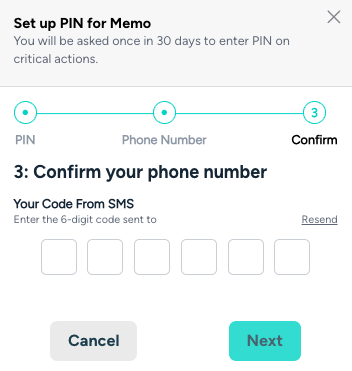
- Confirm with OTP (One-Time Password)
Enter the OTP sent to your phone to activate your PIN.
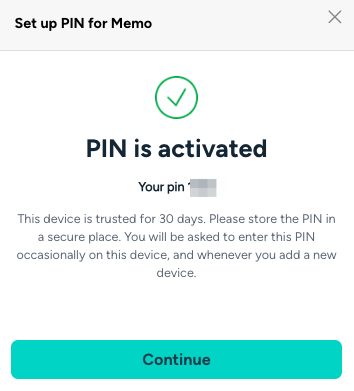
- Success message
Your PIN is now active, and your current device will be trusted for 30 days.
How to change your PIN?
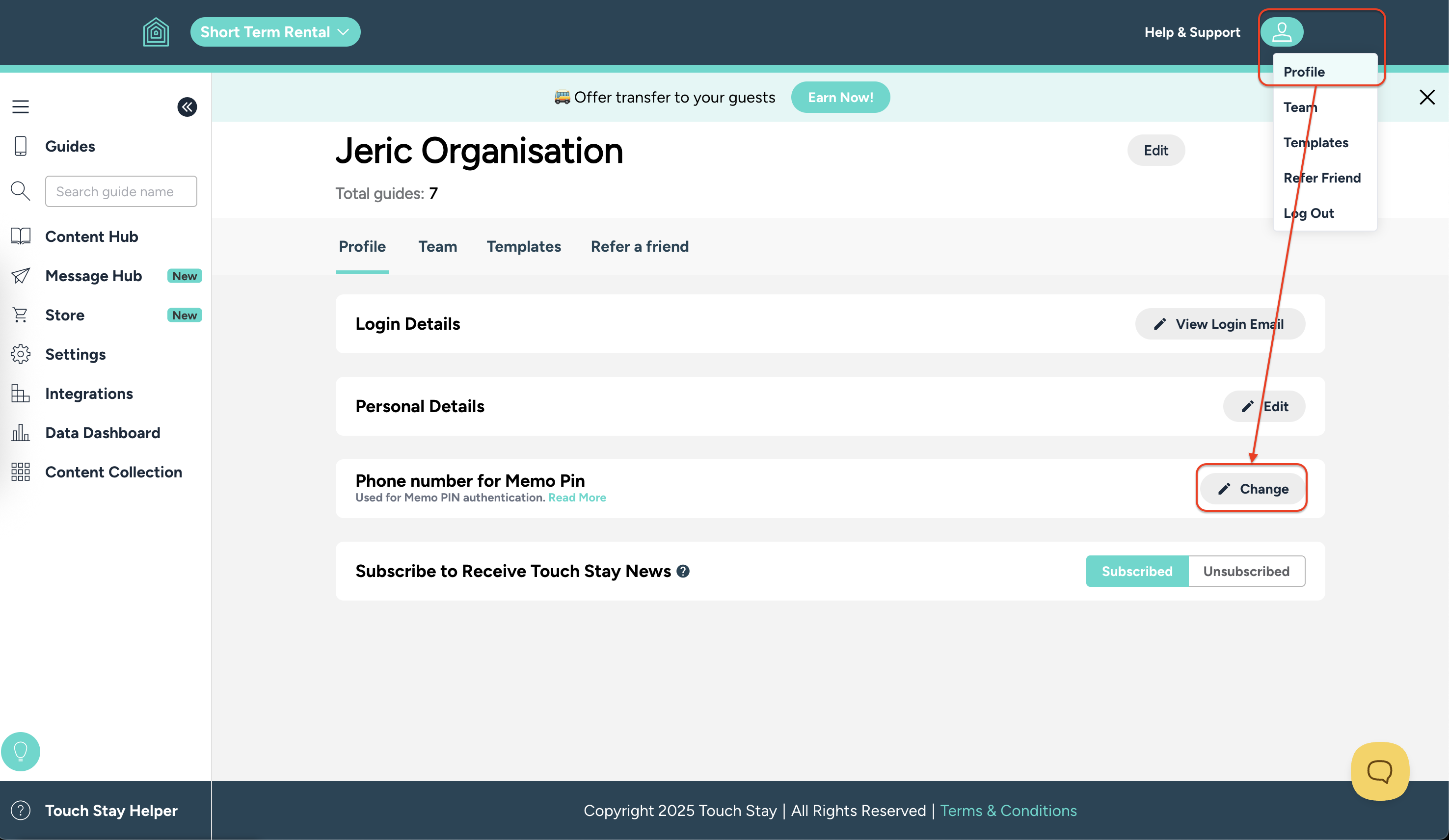
You may change your PIN by going to your Profile section under the user icon on the top right part of the screen.
If you have a PIN enabled already, a 'Phone number for Message Hub Pin' section will appear. Click 'Change' to change your PIN.
How to reset your PIN
Forgot your PIN? Here’s how to reset it:
- Click Forgot PIN? when prompted.
- Enter the OTP (One-Time Password) sent to your registered phone.
- Create a new 4-digit PIN.
- You’ll receive both an email and SMS alert confirming the change.
Trusted devices & PIN prompts
- A trusted device won’t ask for your PIN again for 30 days.
- Logging in from a new device or browser, or after 30 days, will trigger the PIN prompt again.
Security alerts
Every time a PIN is set up or changed, you’ll receive:
- An email alert to your account owner's address
- An SMS alert to your registered phone
These alerts include the timestamp and device information for extra transparency.
Lost phone scenario
If you lose access to your registered phone number:
- You won’t be able to reset your PIN yourself.
- Please contact our support team to reset your phone and PIN for you.
✅ With Message Hub PIN Security, your messages, templates, and contacts stay protected.
Troubleshooting
-
Why your SMS code may not be accepted
If your SMS verification code isn’t working, don’t worry, here are the most common reasons and how to fix them:
-
The OTP (One-Time Password) expires after 5 minutes.
Each code is valid for 300 seconds (5 minutes), after that, it can’t be used.
-
You may have requested a new code too quickly.
There’s a 60-second cool-down between OTP requests. Wait a minute before trying again.
-
Always use the most recent code.
Every new request creates a new session, which invalidates any earlier code.
-
Check your phone number format.
It must follow E.164 format, for example:
+15551234567(with the country code). -
Carrier delays or spam filters can affect delivery.
If your network is slow or flags short codes as spam, your OTP might arrive too late to be valid.
-
Too many failed attempts.
After 5 failed verification attempts in 15 minutes, your account will be temporarily locked for about 15 minutes.
-
How Message Hub Security works for offices with multiple staff
You do not need staff to use their personal mobiles. Here are a few options:
- Trusted devices per workstation
- Set up Message Hub Security once (with a single office phone number). Then on each office computer/browser:
- Log in, attempt a protected action once, enter the 4‑digit PIN, and the device becomes trusted.
- A trusted device remains valid for ~30 days and auto‑extends with continued use. Staff won't be prompted again on that device unless cookies/storage are cleared or 30 days elapse without use.
- Set up Message Hub Security once (with a single office phone number). Then on each office computer/browser:
- Shared office number
- Use a shared SMS‑capable number (an office mobile, SMS‑enabled desk/VoIP line, or a shared virtual number like Google Voice/Twilio). OTPs go to that shared device/inbox instead of personal phones.