
Octorate Integration
Connect your Touch Stay and Octorate accounts to import Octorate properties & booking data into your guides and make it easier to share guides with your guests.

The steps to complete your integration:
- Step 1: Connect your Touch Stay & Octorate accounts
- Step 2: Match Octorate properties
- Step 3: Import Octorate properties
- Step 4: Complete guide creation (new Touch Stay customers only)
- Step 5: Personalisation settings
- Step 6. Sync reservations
- Step 7. Sharing guide links through Octorate
- A note about Octorate message timing
Step 1. Connect your accounts
Go to Integrations in your Touch Stay account, go to the Partners tab, and click “Connect" underneath the Octorate logo. This will take you to the Octorate authorisation screen, where you confirm giving access to Touch Stay.
Step 2. Match Properties
Once authorised, you can match your existing Touch Stay guides to your Octorate properties.
- Go to the Match tab on the Integrations page.
- Use the drop-down menus to select the correct Octorate property for each Touch Stay guide.
- When you’re done, click Match Selected to save your matches.
💡 Tip:
If you don’t see any guides listed on this step, don’t worry, you can skip straight to Step 3.

Step 3. Import Properties
If you still have any unmatched listings from Octorate, you can easily import them into Touch Stay.
- Go to the Import tab on the Integrations page.
- Tick the box next to each listing you want to import.
- Click Import Selected to add those listings to your Touch Stay account.
💡 Tip: Once imported, your new guides will automatically appear in your Guides list and be ready to set up.

What Touch Stay Imports
When you import from Octorate, Touch Stay will bring in the following details:
- Property Name
- Property Address
- Cover photo
Each unit imported will create a new Touch Stay guide.
Step 4. Complete guide creation (new Touch Stay customers only)
Matching or importing your listings won’t automatically start syncing reservations from Octorate.
Before enabling the sync, take a moment to review your guides and make sure all the content is ready to share with guests.
💡 New to Touch Stay?
Visit our Quick Start Video for helpful tips on the quickest way to build your digital welcome book.
Step 5. Personalisation settings
You can map Octorate property and reservation data fields to your Touch Stay custom fields or topic customisations.
This allows you to automatically personalise your guides and guest messages for each reservation, for example, by showing the guest’s name or stay dates inside your welcome book.
The steps below explain how to map and sync reservation data from Octorate to your Touch Stay account.
Automatically Mapped Fields
The following Octorate reservation fields are automatically linked to standard field codes in your Touch Stay account:
| Field | Data Type |
|---|---|
| Guest first name | Text |
| Guest last name | Text |
| Arrival date | Number |
| Departure date | Number |
| Guest contact phone number ⚠️ | Number |
| Guest contact email address ⚠️ | Text |
⚠️ Note: Some OTAs or booking sites don’t always provide the guest’s phone number or email address, so these details may vary depending on where the booking came from.
Optional Fields You Can Manually Map
These additional Octorate reservation fields are available through the integration and can be manually mapped to your own Touch Stay custom fields:
| Field | Data Type |
|---|---|
| Number of Children | Integer |
| Number of Infants | Integer |
How to Map Custom Fields
- Go to the Integrations page.
- Open the Map Data tab.
- Click + Add New Mapping.
- Select the Octorate field you want to connect.
- Choose a name for your custom field code and, if needed, add a substitute value.
- 💡 Tip: Substitute values are used when data from custom fields is missing at the time the field code is used
- For example, if a custom field, such as Number of adults or Number of children, isn’t provided, you could display a message like “Contact us if this information is missing.”
- 👉 Learn more in our article: Field Codes Explained
- 💡 Tip: Substitute values are used when data from custom fields is missing at the time the field code is used
- Once your custom fields are mapped, any future reservations synced from Octorate will automatically populate those fields on the Touch Stay Invitation record.
💡 Tip: You can then use this data in your Message Hub templates and guide content to personalise the guest experience.

Step 6. Sync reservations
Sync Octorate reservations with your Touch Stay account and complete the integration.
- Go to Integrations → Sync tab
- Under Sync Options, choose how to import your reservations:
-
All reservations – recommended if you’re new to Touch Stay.
This will sync all your future-dated reservations and generate invitations for each one.
-
New reservations only – choose this if you already use Message Hub to send invitations.
It will only create invitations for bookings made after the sync activation date, preventing duplicates.
-
- Tick the checkboxes for the guides you want to sync. Use Select All (top-right) to choose all guides at once.
- Click Sync Selected.
- The process may take a few minutes, depending on the number of reservations and properties.
- You can stay on the page or continue working; the sync runs in the background.
- Once active, any new Octorate reservations will automatically import into Touch Stay for those guides.
💡 Tip:
You can check your sync status or view imported reservations anytime from the Message Hub → Invitations page.

Step 7. Sharing guide links through Octorate
Touch Stay automatically sends a unique guide link for each reservation back to Octorate.
You can include this link in your Octorate message templates to automatically send guides to guests through the Octorate unified inbox.
Your Octorate account will now include a new custom reservation field called:
{{ts-guide-link}}
To set up your Octorate messages:
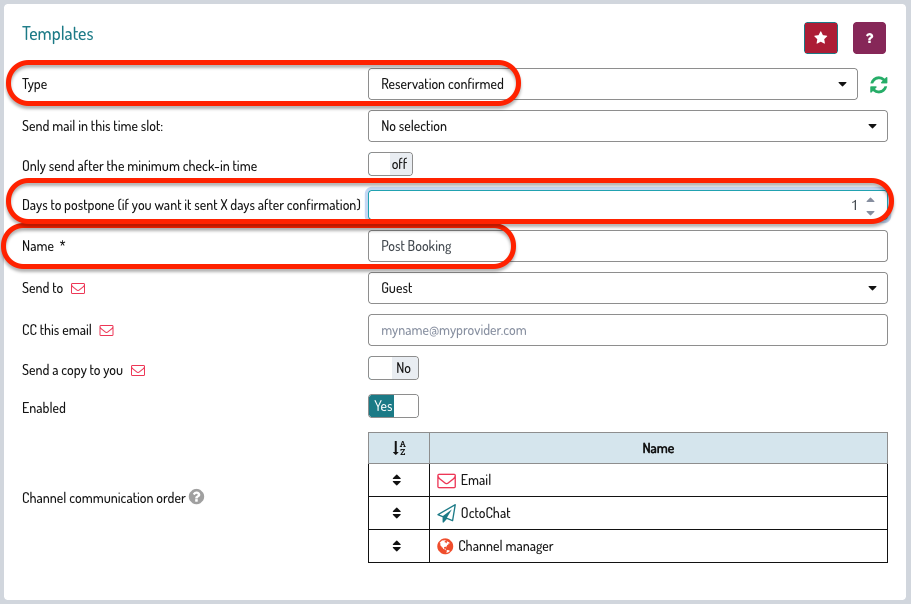
- Go to Settings → Email Templates, and then click '+Add New'.
- In the Template section:
- Select the type Reservation Confirmed
- Add a template name
-
Set 'Days to postpone' to 1.
- On the Customized Text section:
- Add your message
-
Click Reservation (API Data) > Touch Stay Guide.
This will add
$(reservationMeta.ts-guide-link)to your message.
- Scroll down and hit 'Save'.
And that’s it! You can now include the Touch Stay guide link in your Octorate message templates to automatically share your welcome book as part of your guest communication flow.
Notes:
A note about Octorate message timing
There may be a short delay between a booking arriving in Octorate and the guide link being returned from Touch Stay while both systems process the data.
💡 Recommendation:
Avoid adding the$(reservationMeta.ts-guide-link) field to messages that send immediately after a booking is received.
Instead, schedule a message about an hour later (or even the next day) to introduce your guests to everything they’ll find in your guidebook.
What happens if I’m already using Message Hub?
If you want to switch from Message Hub to Octorate for sending guide links:
- Archive your existing Message Hub message templates; this stops them from being added to new reservations.
- Set up your new Octorate message flow.
-
Archiving won’t affect any existing invitations.
To cancel messages already scheduled, delete the Message Hub template instead.