
Setting up online Store payments
Setting up payments is the most important step to getting your Touch Stay Store open for business. We’ve partnered with Stripe Connect to ensure your transactions are secure, automated, and easy to manage.
This guide will walk you through connecting your account, configuring your tax settings, and understanding the fee structure.
Table of Contents
Before You Begin
Because this process involves financial agreements and legal entity verification, the setup should be completed by someone with senior management responsibility or legal authority for your business.
What is Stripe Connect?
By using Stripe Connect, you get a dedicated Stripe Dashboard. This gives you access to professional-grade reporting tools, payout schedules, and transaction history—all independent of your Touch Stay account but perfectly synced with your Store.
Connecting Your Account
To start the setup, navigate to the Store > Settings, scroll down to Payment Settings, click Enable Online Payments, and then click Add Information.
1. Choose Your Connection Type
-
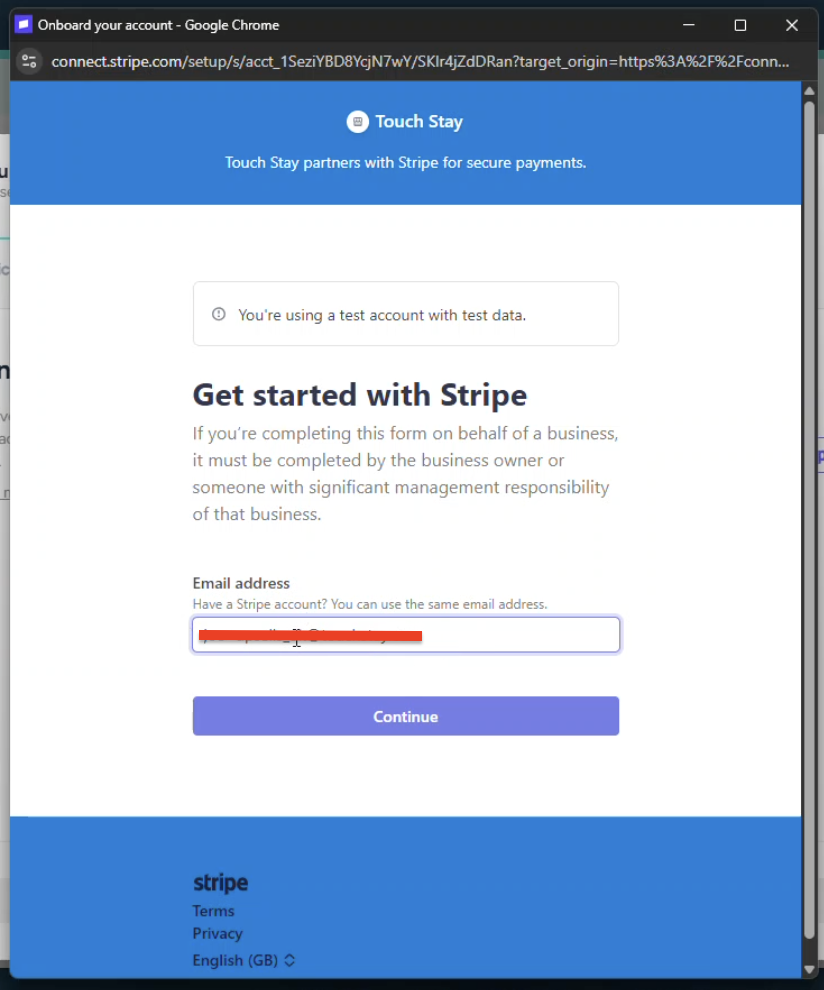
Connect an Existing Account: If you already use Stripe for your business, you can enter your Email Address, click Continue, and then follow the on-screen instructions.
-
Create a New Account: If you are new to Stripe, you will be guided through a setup wizard.
2. Requirements for New Accounts
The specific details required may vary by country, but generally, you will need to provide:
- Security: Setting up Two-Factor Authentication (2FA) is required to keep your account secure.
- Business Details: Your legal business name, tax ID (e.g., EIN, VAT number), and registered address.
- Responsible Person Details: Legal name, date of birth, and sometimes a form of ID for the person managing the account.
**Please note that for new accounts, it can take 2-3 days for approval from Stripe.
Configuring Tax and Pricing
Once your Stripe account is connected, you’ll need to define how you handle taxes. These settings ensure you remain compliant with local regulations.
- Tax Liability: Confirm whether you are required to collect tax on your sales.
- Pricing Display: Decide if your store prices are inclusive (tax is already in the price) or exclusive (tax is added at checkout) of tax.
- Tax Registrations: If applicable, you can add your specific tax registration numbers to ensure they appear correctly on guest receipts.
Understanding Fees
To provide a seamless shopping experience and secure payment processing, there are two types of fees associated with each transaction:
| Fee Type | Description |
| Stripe Fees | Standard processing fees (vary by card type and country). |
| Touch Stay Fees |
A small platform fee for the maintenance and support of the Store feature. Currently at 2% |
Detailed breakdowns of these fees are visible within your Stripe Dashboard for every transaction.
Next Steps
Now that your payments are configured, you're ready to stock your digital shelves!
Ready to add products? Head back to our introduction article - The Store Explained to start building your catalog.